A Kind Of Quick Guide To EVerest
Prepare Your Development Environment
This guide will help you to set up a development environment for EVerest on your local machine.
For a native build, EVerest requires a Linux based system.
To build on a Windows or Mac system, you can use WSL2 (Windows) or Docker / Podman (Mac).
For Mac, see the How-to for MAC setup.
System Requirements and Dependencies
This section lists all dependencies and supported environments required to set up your development environment and build EVerest.
General Requirements
Python (greater than 3.6)
Jinja2
PyYAML
Compiler:
GCC 9 (lower versions could work with some tweaking but are not recommended)
Clang (starting with version 12) has been used with EVerest but is not officially supported.
Tested Linux Distributions
Ubuntu:
Warning
Ubuntu 20.04 and 22.04 may not be supported anymore.
Tested with Ubuntu 24.04 or newer.
Use apt to get your needed libraries installed:
sudo apt update
sudo apt install -y python3-pip python3-venv git rsync wget cmake doxygen \
  graphviz build-essential clang-tidy cppcheck openjdk-17-jdk npm docker.io \
  docker-compose libboost-all-dev nodejs libssl-dev libsqlite3-dev \
  clang-format curl rfkill libpcap-dev libevent-dev pkg-config libcap-dev \
  libsystemd-dev
OpenSUSE:
Use zypper to get your needed libraries installed:
zypper update && zypper install -y sudo shadow
zypper install -y --type pattern devel_basis
zypper install -y git rsync wget cmake doxygen graphviz clang-tools cppcheck \
 boost-devel libboost_filesystem-devel libboost_log-devel \
 libboost_program_options-devel libboost_system-devel libboost_thread-devel \
 java-17-openjdk java-17-openjdk-devel nodejs nodejs-devel npm python3-devel \
 python3-pip gcc-c++ libopenssl-devel sqlite3-devel libpcap-devel \
 libevent-devel libcap-devel
Fedora:
Tested with Fedora 40, 41 and 42. Here is how to get your needed libraries with dnf.
sudo dnf update
sudo dnf install make automake gcc gcc-c++ kernel-devel python3-pip python3-devel \
 git rsync wget cmake doxygen graphviz clang-tools-extra cppcheck java-21-openjdk \
 java-21-openjdk-devel boost-devel nodejs nodejs-devel npm openssl openssl-devel \
 libsqlite3x-devel curl rfkill libpcap-devel libevent-devel libcap-devel
Download And Install EVerest
EVerest’s main application code is located in everest-core. It makes use of various
libraries and tools that are distributed across multiple EVerest repositories.
The EVerest Dependency Manager - short edm - helps you with orchestrating and pulling in
the dependencies in the build process of everest-core.
To start with that, let’s get edm ready to work.
You will first of all need to pull everest-dev-environment to your development environment.
git clone https://github.com/EVerest/everest-dev-environment
cd everest-dev-environment/dependency_manager
python3 -m pip install . --break-system-packages
Note
Alternatively, you can also install edm in a python virtual environment. Make sure edm is available in your PATH after the installation.You can verify this by running edm –version.
edm uses CPM for its CMake
integration. This means you can and should set the CPM_SOURCE_CACHE environment
variable. This makes sure that dependencies that you do not manage in the workspace
are not re-downloaded multiple times. For detailed information and other useful
environment variables please refer to the
CPM Documentation.
Make sure to set the PATH and the CPM_SOURCE_CACHE variable in your shell profile:
export CPM_SOURCE_CACHE=$HOME/.cache/CPM
export PATH=$PATH:/home/$(whoami)/.local/bin
For more details about edm, see the dedicated
edm documentation.
We can now continue to build everest-core.
git clone https://github.com/EVerest/everest-core
mkdir build && cd build
cmake ..
make -j$(nproc) install
Simulating EVerest
The following sections explains how to get EVerest running in a software-in-the-loop.
Prepare The Helpers
EVerest provides some Docker containers that help with the simulation. One container is used to run an MQTT Broker (mosquitto), which is required to run EVerest. This documentation section shows the necessary steps to start the simulation and get a simple NODERED user interface running.
Hint
To get all this working, make sure you have docker and docker-compose installed during the previous install phase. If not, see install instructions for docker and docker-compose.
In order for custom or local containers being able to talk to the services, provided by the docker-compose containers, we need to create a common docker network. It is called infranet_network and needs to be created by the following command (IPv6 is enabled for containers which might need it):
docker network create --driver bridge --ipv6 --subnet fd00::/80 infranet_network --attachable
Now, start the mosquitto broker, which is deployed as built docker image. It is used for the communication between the EVerest modules:
docker run -d --name mqtt-server --network infranet_network -p 1883:1883 -p 9001:9001 ghcr.io/everest/everest-dev-environment/mosquitto:docker-images-v0.1.0
That makes us ready for entering the simulation phase described in the next chapter.
Software in a loop
In the following, we will start EVerest as a simple AC charging station with software-in-the-loop configuration. This means that all hardware related parts like Powermeter, RFID-Reader are loaded as simulated modules. Also the Electric Vehicle simulations run as part of EVerest.
Change to the directory everest-core/build, which has been created during EVerest install.
Since the EVerest config we are going to use includes ISO15118 functionality on the EV side, we need to source the preinstalled virtual environment and install the respective python requirements for ISO15118 using a make target:
source venv/bin/activate
make iso15118_pip_install_dist
Now we can start EVerest with a software-in-the-loop configuration via script.
./run-scripts/run-sil.sh
This script starts EVerest with EVerest with a pre-defined configuration for software-in-the-loop simulation. Every module specified in that configuration is started as an independent process.
In a new terminal window, run the following Node-RED script:
./run-scripts/nodered-sil.sh
For a user interface, just direct your browser to http://localhost:1880/ui - the required web-server has already been started via the shell scripts.
This will let us control the simulation in a very simple GUI.
You can analyse the output of the two shell scripts in the terminal windows to get a little bit of insights about what is going on and which ports are used etc.
In the GUI, you can simulate car charging sessions using the available buttons, e.g. CAR PLUGIN, PAUSE, RESUME and so on:

Having a very first basic feeling for that will be enough for now. We are preparing a module tutorial, in which we will dig deeper into things.
Admin panel and simulations
Important
Be aware, that the Admin Panel is currently under development. The former version of the Admin Panel, which was integrated in EVerest, will be removed. See the new standalone version which runs without an EVerest instance here: Admin Panel GitHub repository .
You can glue together the modules of EVerest (and also your custom ones) with the help of EVerest’s framework mechanisms. This way, you define simulation flows with which you can test and analyze complicated systems.
As EVerest is a modular framework, you can define connections and data flows in a nice network of modules. As it would be a little bit exhausting to configure everything via code or config files, there is a nice helper: The admin panel.
It gives you an overview of modules and connections between them. In a diagram, you can see and understand the simulation with all interfaces, configs, data flows and so on.
Note
See Admin Panel GitHub repository for information about how to start the Admin Panel. The screenshots and the documentation in this subsection might be different than what you see on your screen. This is due to the currently ongoing changes in the Admin Panel. This will be updated soon.
You should see a rather empty page like that:
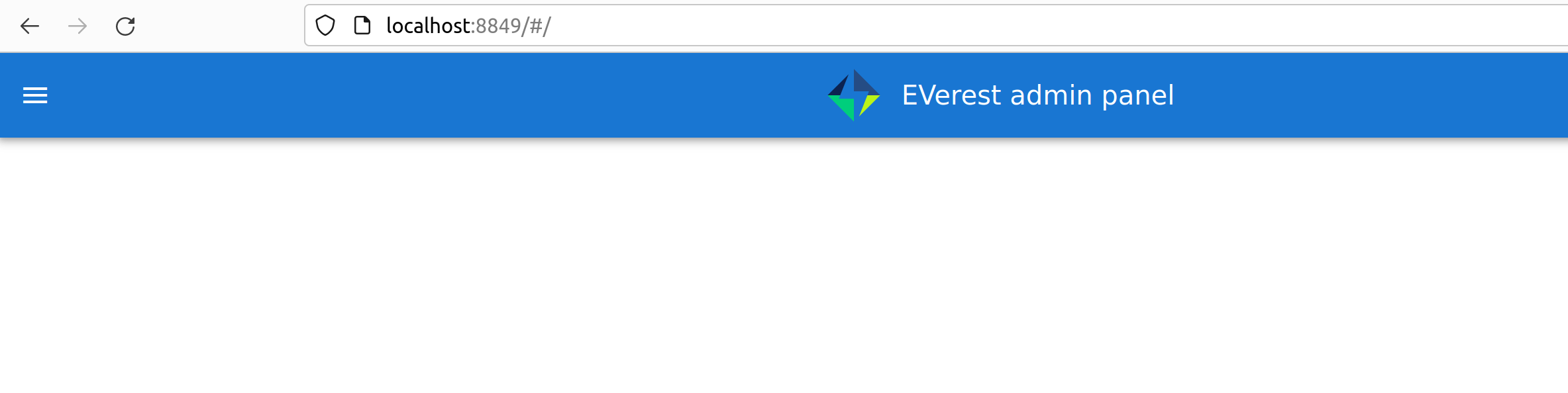
Click on the menu symbol on the upper left corner of the page, then click on config. A left side column with further menu items opens. Choose Available configs:
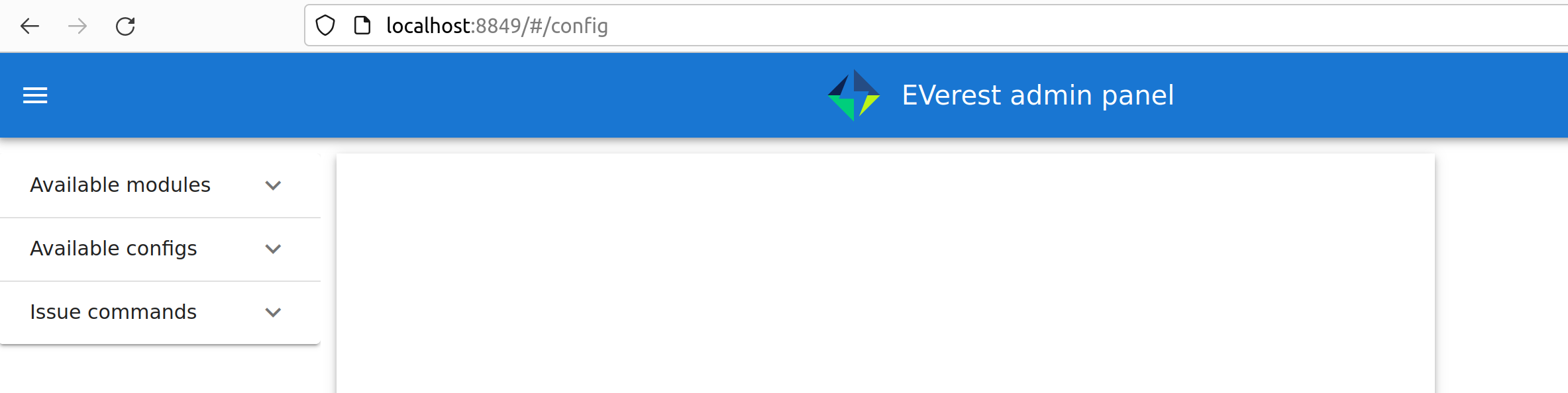
If you are here for the first time, you will see all pre-configured Node-RED flows here. For a first intro, you may want to take a look at config-sil.
After opening it, you can see a diagram representation of some modules with connections between them.
The role of each module in this system and how to configure an EVerest module environment with the Admin Panel will be explained on page EVerest Modules.
Next, let’s see how fast we can create a new module in EVerest.
Understanding EVerest Modules
You reached the phase of writing a new EVerest module. Congrats!
For this Quick Start Guide, we will give you a rocket start of understanding the basic elements of the EVerest module concept.
Note
Modules can be implemented in C++, Python or Rust. We will stick to C++ in the examples below.
So, let’s dig into the overview:
EVerest is a modular framework. So, there are lots of modules for different
entities in everest-core:
EvseManager (a charging port as part of a charging station)
Hardware driver modules
Protocol implementations
Car simulation modules
Authentication modules
Energy management modules
and so on.
Of course, you can change the functionality of those modules or add your custom ones to the whole module stack.
In simple terms, a new module can be created by describing its structure via a manifest file and interface files. After that, an EVerest helper tool (ev-cli) will create the necessary files as stub files, so that you can implement the details. The EVerest framework will also know how the modules can be connected by the restrictions you set in the manifest.
How does all that look like? Read the next section!
Basic elements of a module
Module manifest
Let’s look at the first step: Describing the structure of a new module. Starting with the manifest file, which could look like this:
 1description: Describing what this module does.
 2config:
 3  some_key:
 4    description: Describe the effect of this config key.
 5    type: boolean
 6    default: false
 7provides:
 8  main:
 9    interface: myinterface
10    description: Describe what the implementation of this interface does.
11requires:
12  some_implementation:
13    interface: externalinterface
14    min_connections: 0
15    max_connections: 2
16enable_external_mqtt: true
17metadata:
18  license: https://spdx.org/licenses/Apache-2.0.html
19  authors:
20    - Your name, your company
Most of this should be self-explanatory. Just a few words:
The config section gives you the possbility to define some config keys for the module to re-use it for different scenarios in your workspace.
In line 7, the provides section let’s you tell other modules what your module is able to do. You tell the EVerest module framework which interfaces have been implemented - for example, a power meter. Of course, you can implement more than one interface and list all of that in the provides section.
Line 11 starts with the requirements of your own module. This is the other side: Your module tells the EVerest module framework which implementations it will require to work.
With the min_connections and max_connections keys you can configure how many connections are required or allowed for your module.
In EVerest, you find a manifest file for each module. See the module directories in everest-core/modules.
Interfaces
An interface describes - like a kind of construction manual - which information it delivers and which functionality it provides for other modules to use.
A module, that implements an interface, publishes information via VARs (short for variables). VARs can be consumed by connected modules. Functionality is provided by CMDs (commands, that can be called from other modules).
VARs and CMDs are defined in the interface files. Remember the manifest file? The previous section showed that the manifest file defines which interfaces your module implements. Those interfaces could already exist. If not, you would have to create a new one. EVerest contains a rich set of interfaces defining common functionality of a charging station software stack.
You can find all interface source files in the directory everest-core/interfaces as yaml files or their respective documentation in the EVerest Reference Documentation.
This is an easy interface as an example:
 1description: Describe why we need this interface.
 2cmds:
 3  get_id:
 4    description: Describe what this command does when called.
 5    arguments:
 6      verbose:
 7        description: An example for a method argument.
 8        type: boolean
 9    result:
10      description: Explain the return value.
11      type: integer
12vars:
13  temperature:
14    description: Describe this value that gets published.
15    type: integer
16  limits:
17    description: Describe this struct that gets published.
18    $ref: /typedef#/Limits
A short interface file, but lots to learn here:
You can see one CMD defined, which has the name get_id. If you want to implement this interface (and provide the functionality of the interface to other modules), this is the method you will have to fill with code in your implementation later.
There is one argument defined for the method called verbose. A return value of type integer rounds things up for the one CMD of this interface.
VARs are pieces of information which get published for the network of listening modules regularly. We have two VARs in this example. The first one is of type integer, the second one is a reference to a type definition.
This way, you can create structs or classes (however you would call a bunch of simple data-types grouped inside of one logical unit) for publishing.
Note
In some yaml interface files in the EVerest GitHub project, you will still find an additional type attribute besides a $ref attribute. In most cases, the type will be of value object. This is considered bad practice and will be deprecated in future versions.
Let’s have a look at a type definition in the next section.
Types
As you have seen in the example interface yaml, you can use types instead of primitive data types (like boolean, integer, string).
In the interface, you saw a reference to an EVerest type definition.
You can find the type definitions as yaml files in the following directory:
everest-core/types or their respective documentation in the EVerest Reference Documentation.
An easy definition of a type could look like this:
 1description: Describe which group of types will follow.
 2types:
 3  SomeType:
 4    description: Describe this type.
 5    type: object
 6    additionalProperties: false
 7    properties:
 8      property_1:
 9        description: Describe the first property.
10        type: boolean
11      property_2:
12        description: Describe the second property.
13        type: number
You can see one defined type here. It has two properties. A property could again be another type reference.
Now, as we have defined everything, it is time to let the EVerest command line interface - the ev-cli tool - generate the implementation stubs.
Generate the stub files
You can use ev-cli to generate stub files for a module. Everything that you need
is a module directory within everest-core/modules containing a manifest.yaml file
described above.
Assuming the module is defined inside the EVSE directory you can use ev-cli to create the module skeleton like this:
ev-cli mod create EVSE/MyModuleName
Your main cpp file will have two special functions:
void MyModuleName::init() {}
void MyModuleName::ready() {}
When initialising, the EVerest framework will call all init() functions of all modules one after the other. After having initialised all modules in that way, the framework calls the ready() functions.
This allows you to do setup things that relate only to your current module in the init() function and all stuff requiring other modules being initialised in your ready() function.
Furthermore, you will get generated files for all interfaces that you declared to be implemented in your module. Those interface files will contain handler methods for the CMDs you have declared in the interface files.
You can walk through the generated files in your new module directory and have a look at the prepared classes.
Please see the documentation about ev-cli for further documentation.
Or - if you rather would like to have more theoretical input about EVerest modules - continue with the EVerest Module Concept page.
One Deep Breath And Next Steps
You made it. Great!
Probably, now is a good time to take a deep breath and review what you have learnt about EVerest.
You might have generated stub files now but still are not sure how to procede with implementing your specific scenarios?
Good news: A tutorial about developing EVerest modules is waiting for you.
Continue with the tutorial here!
See you in our weekly tech meetings and thanks for being a part of the EVerest community!
Authors: Manuel Ziegler, Piet Gömpel, Dominik Kolmann, Andreas Heinrich, Philip Molares, Tobias Marzell